
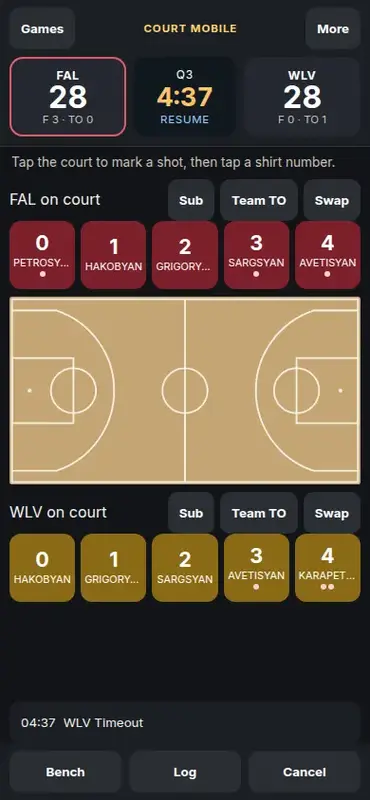
A laptop court screen assumes a mouse and a wide display. A phone at the scorer’s table does not. Court mobile is a third way to run a live game: the same stats, the same action menu, laid out so the important taps sit under a thumb. The screenshots in this guide are the live demo on demo.bbstats.am, Falcons against Wolves, third quarter, 28–28.
This shipped in changelog v2026.10.06. Classic scoring and the laptop court screen were left as they are. Court mobile is the experimental touch layout.
Table of Contents
- Quick Takeaways
- What Genius Puts on a Wide Screen
- The Phone Layout
- Mark the Shot, Then the Shooter
- Bench, Log, and Swaps Are Sheets
- Turn the Tablet Sideways
- How to Open It
- Frequently Asked Questions
- References
Quick Takeaways
| Key Insight | Explanation |
|---|---|
| A third button, not a replacement | On a live game the Games list shows Live, Court, and Court mobile. The first two screens are unchanged. |
| The clock is a button | It reads Start, Pause, or Resume. You do not need the space bar. Fouls and timeouts sit under each team’s score. |
| Court tap, then shirt number | A tap on the floor marks a 2 or a 3 from the FIBA arc. The shooter’s number opens the same action menu the laptop court screen uses. |
| Sideways puts the fives beside the court | On a landscape tablet each team’s five flanks the floor, which is how FIBA LiveStats lines shirt numbers up next to the court on a laptop. |
What Genius Puts on a Wide Screen
FIBA LiveStats, the Genius scoring application, is a Windows program. Its game action screen keeps three things in view at once: the score, period, fouls and timeouts; the shirt numbers of the five on the floor, lined along the court; and the bench on a player-summary tab rather than a permanent column. A shot starts with a click on the floor, which decides 2 or 3, and only then the player.
That arrangement is right for a laptop. On a 390-pixel-wide phone the same three columns collapse into a stack you cannot tap. Court mobile keeps the same jobs and moves them. The score strip stays pinned. The five numbers become large buttons. The bench waits in a sheet until you ask for it. The court tap still classifies the shot before you name the shooter.
The Phone Layout
The header is labeled Court mobile so you can tell it from the laptop court screen. Each team is a score button. The side with the outline is the one whose five is drawn largest. Fouls this quarter and timeouts used are the small line under the score, so you can check them against the paper sheet without opening another page.
The clock sits between the scores. While the quarter is live it is the pause and resume control. Before the first start of a period it reads Start. Under the hint line, the active team’s five are the burgundy or gold buttons. Sub, Team TO, and Swap sit on that same row. The other team’s five are directly under the court, still tappable, so you can charge a foul or a rebound to the defense without hunting through a menu.
The last play-by-play line is the strip above Bench, Log, and Cancel. In the demo shot that line is 04:37 WLV Timeout.
Mark the Shot, Then the Shooter
Tap the floor first. The mark uses the same FIBA court geometry as the laptop court screen, so a click beyond the arc is a 3 and a click inside it is a 2. The hint changes to “3-point mark. Tap the shooter.” or “2-point mark. Tap the shooter.” Clear mark removes it if you hit the wrong spot.
The shirt number opens the action menu: made or missed, shot type, fast break, assist, block, rebound, foul, turnover, free throws. That menu is the one the laptop court screen already uses, so a crew that learned those steps does not learn a second set of definitions. Closing the menu records nothing.
If the starting five is not locked yet, the screen asks for five names per team before any of this appears. That is the same tip-off step as the other scoring screens.
Bench, Log, and Swaps Are Sheets
Genius keeps the bench off the main court until you open the player tab. Court mobile does the same with Bench. Both teams’ dressed reserves are listed with jersey and last name. Sub on a team’s row opens this sheet and waits for an on-court number, then a bench name. A player with five fouls is still listed; the tap that would bring them in is refused.
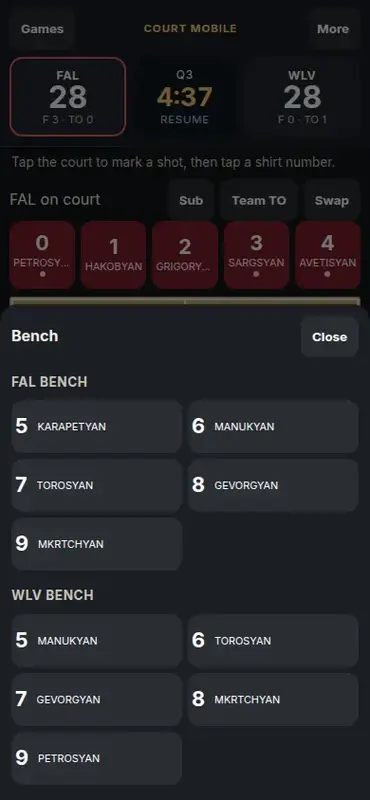
Log is the play-by-play. Admins can edit a clock label or description, or add and delete an event, the same way the other scoring screens do. Team TO opens the FIBA reasons: shot clock, 8 seconds, 5 seconds, 3 seconds, backcourt, or a generic team turnover. Swap maps several on-court players to bench replacements in one confirm. Cancel drops the in-progress sub, swap, or court mark.
Turn the Tablet Sideways
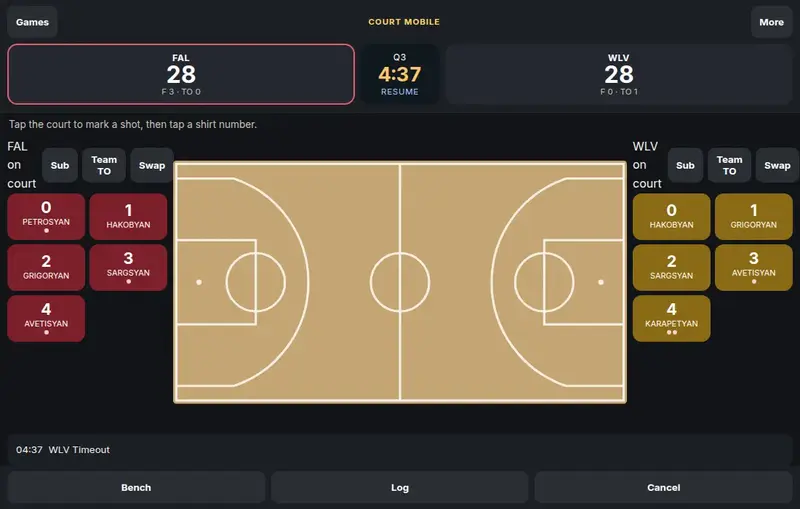
Widen the window, or rotate a tablet, and the stack becomes three columns. The active five is on the left, the court is in the middle, the other five is on the right. Sub, Team TO, and Swap stay with their team. The score strip and the Bench / Log / Cancel bar stay full width. This is the Genius lineup — numbers beside the floor — once there is room for it.
How to Open It
- Open admin → Games and find the live game.
- Tap Court mobile. Live still opens classic scoring. Court still opens the laptop court screen.
- If the fives are not locked, pick five per team and confirm.
- Tap the clock to start or pause. Tap the floor, then the shooter, and finish the action menu.
- Use Bench for substitutions and Log if you need to read or correct the last line.
One person holds the scorer lock. If someone else already has it, the screen says who, and Take over is the way in. More also links to the shot-clock console and back to the other two scoring screens.
Frequently Asked Questions
Does Court mobile replace Court?
No. Live, Court, and Court mobile are three buttons. The first two pages were not edited for this release.
Will a court tap by itself add points?
No. The tap only places the mark and locks the attempt at 2 or 3. Points are written when you complete the action menu on a made shot.
Can two people score the same game, one on a phone?
One scorer lock at a time. The other device can watch. Take over moves the lock.
Where do I see the bench?
Bench, at the bottom. It lists both teams’ reserves for this game. Players who were not dressed at tip-off are not on that list.
Is the demo screenshot a real game?
It is the public demo league, Falcons versus Wolves, which resets on a schedule. The screen is the same one a league admin opens on their own live game.