
Most amateur leagues already film game night. The messy part is everything around the camera: a watch link that never makes it onto the game page, and a volunteer who has to create the YouTube event by hand on Friday afternoon. YouTube Live streaming for basketball leagues on bbstats.am is meant to remove that second job. The admin connects the championship channel once with Google. After that, creating a game also creates the scheduled broadcast and a unique OBS key for that fixture.
Update (13 September 2026): the first release used one reusable stream key for the whole league. That caused YouTube to open a new live after an encoder drop. Read why each scheduled game needs its own YouTube stream key. The rest of this guide still covers OAuth, auto-create, and delete rules.
This is what shipped in changelog v2026.09.10, next to the OBS recap overlay and live played minutes from the day before. The rest of this guide is the practical workflow: who signs in, where the stream key lives, what happens when you edit or trash a game, and what YouTube still has to allow on its side.
Table of Contents
- Quick Takeaways
- Why Google OAuth, Not an API Key
- Stream Key Per Game (Updated)
- Home vs Away Is Created When You Save the Game
- Edit and Delete Only Touch Scheduled Events
- Also This Week: Recap Overlay and Live Minutes
- How to Turn It On
- Frequently Asked Questions
- References
Quick Takeaways
| Key Insight | Explanation |
|---|---|
| Google sign-in is per league | bbstats uses one OAuth app for the platform. Each championship admin still connects their YouTube channel and keeps their own stream key. |
| Each game has its own OBS key | We create a non-reusable live stream per scheduled fixture. Copy that game’s server URL and key into OBS before you go live so a reconnect stays on the same broadcast. |
| The watch link is filled for you | A new scheduled game titled Home vs Away gets a YouTube event and the public game page embed uses that URL. |
| Played games are left alone | Trashing a live or finished game does not delete the YouTube VOD. Only unused scheduled events are cancelled. |
Why Google OAuth, Not an API Key
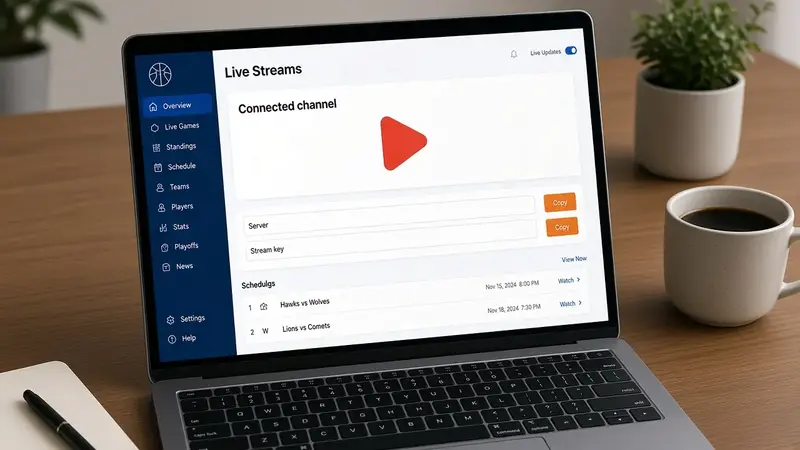
YouTube will not let a service account or a public API key create broadcasts on a channel. The person who owns the league page has to grant access. That is Google OAuth: the admin clicks Connect YouTube on Branding, Google asks for YouTube permission, and bbstats stores a refresh token for that championship only.
The OAuth client itself is platform-wide. You do not create a Google Cloud project per tenant. EVN Cup and a youth league each sign in with their own Google account, attach their own channel, and never see each other's keys.
Until Google verifies the app, only listed test users can complete that sign-in. The channel also needs live streaming enabled in YouTube Studio (usually a phone verification). Those are YouTube rules, not league settings.
Stream Key Per Game (Updated)
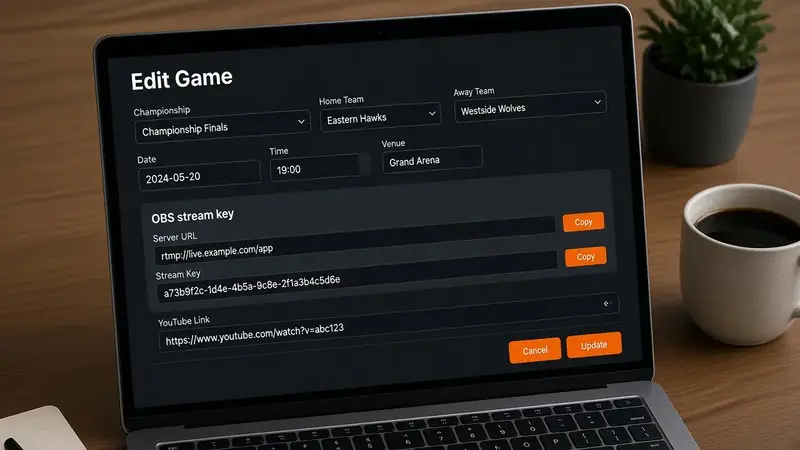
We originally created one reusable live stream for the league. A shared key looks easier in OBS, but on a sports channel it turns a brief disconnect into a second YouTube video. Each scheduled game now gets a unique, non-reusable stream bound only to that Home vs Away event. Copy it from the game form, from Games → Stream key, or from live scoring. Details and the reconnect failure mode: unique YouTube stream key per game.
OBS → Settings → Stream → YouTube / Custom RTMP. Paste this fixture’s server and key. Going live in OBS starts the bound broadcast when YouTube auto-start is on.
Home vs Away Is Created When You Save the Game
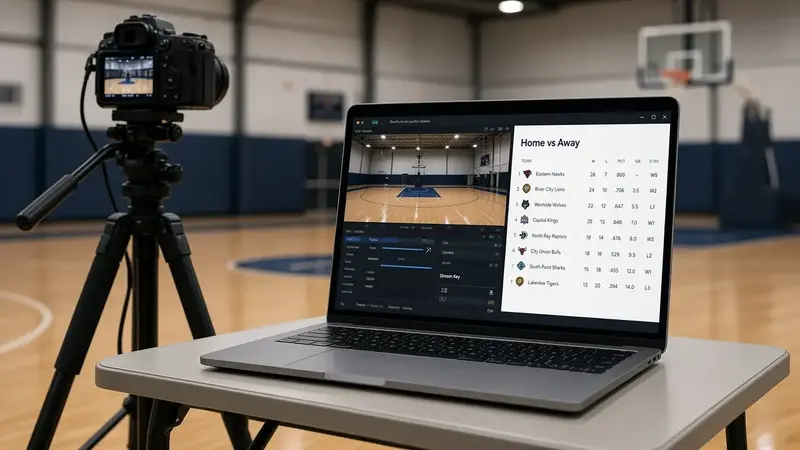
If YouTube is connected and you leave the YouTube link blank, creating a game also creates a scheduled YouTube broadcast. The title uses each team's display name: Home vs Away. The start time is the tip-off you just entered; the end time is two and a half hours later. The watch URL is written onto the game so the public page can embed it.
The same thing happens for a playoff series game and for fixtures committed from the schedule generator. If YouTube is slow or over quota, the game still saves. You will see a warning; you can open the game later and save again to retry, or paste a link yourself.
Paste your own watch URL and we leave it alone. That is the escape hatch for a special broadcast you already created in YouTube Studio.
Edit and Delete Only Touch Scheduled Events
Change the date, time, or teams on a scheduled game and we update the YouTube title and schedule. Trash that game, replace the generated schedule, or cascade-delete it with a team, and we cancel the unused YouTube event.
Once the game is live or finished in bbstats, the YouTube asset stays. Archiving the box score must not pull a completed stream off the channel. Restoring a scheduled game from trash creates a new broadcast if the channel is still connected.
Also This Week: Recap Overlay and Live Minutes
Two nearby releases sit next to the YouTube work if you are already running a stream.
The OBS scoreboard overlay now has a second Browser Source at /overlay/games/:id/recap. It shows the same team comparison bars and top lines as the public Recap tab, in home/away colors, and updates while the game is live. Admin Games has Copy recap; Overlay Designer lists the URL for the selected game.
Played minutes no longer sit at 0:00 until the buzzer. The public box score, live scoring, play-by-play edit, and admin stats all derive on-court time from substitutions and the running clock, as M:SS. Starters accumulate from tip-off. Finished games still use the stored replay minutes.
How to Turn It On
- Open admin → Branding → YouTube Live and click Connect YouTube. Sign in with the Google account that owns the league channel.
- Open the game and copy that fixture’s server URL and stream key into OBS. After Start, use Games → Stream key or the button on live scoring.
- Add a scheduled game as usual. Leave the YouTube link empty. After save, the watch URL should be filled and the event should appear in YouTube Studio.
- Share the public game page. Fans get the embed; you keep scoring in the same admin you already use.
If Connect is disabled, the server is missing the platform Google client. That is a one-time host setup, not something each league repeats.
Frequently Asked Questions
Do I need a Google Cloud project for my league?
No. The OAuth client belongs to bbstats.am. You only sign in with the Google account for your channel.
Can two championships on the same site share one YouTube login?
Each tenant connects its own channel. Two leagues do not share a refresh token or stream key.
What if Google says the app is not verified?
That is expected until Google reviews the YouTube scopes. The connecting admin must be a test user on the OAuth consent screen. After verification, any channel owner can connect.
Will deleting a finished game remove the VOD?
No. Live and finished broadcasts stay on YouTube. Only a scheduled event we created is cancelled when you trash that fixture.
What if I already created the YouTube event myself?
Paste the watch URL on the game. We will not create a second broadcast or overwrite your link.
Does this replace the OBS scoreboard overlay?
No. YouTube is the public watch page. The overlay is still a Browser Source on top of your camera. Use both: this game’s key into YouTube, the scoreboard and recap URLs into OBS.